 MindfulAccess
How to stop doomscrolling at night
Night scrolling is the hardest to stop, because willpower is lowest at the end of the day. Decide in the afternoon, and let your phone hold the line at night.
Block the apps at bedtime
- Install MindfulAccess and turn on Accessibility when it asks. That’s how the app sees what’s on screen.
- On Overview, tap Reflection Schedules and create a schedule.
- Choose the apps that keep you up, like Instagram, YouTube or a browser, and tap Continue.
- Pick Blocking, tap Bedtime (10 pm to 7 am) or set your own hours, and tap Save.
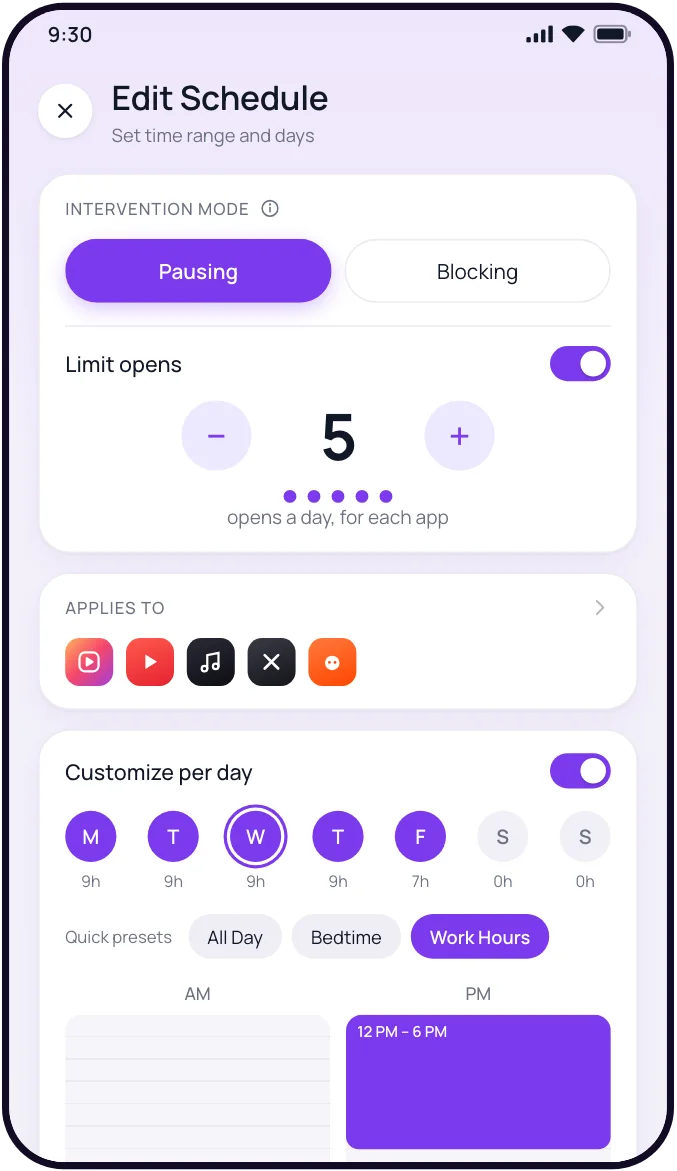
Prefer a gentle nudge?
Pick Pausing instead. Each time you reach for one of those apps, a calm breathing pause asks “Is this important?”. Closing is one tap, and the pause grows a breath longer each time you come back. Often that’s enough.
Make it hold at 1 a.m.
In Settings, turn on Lock schedules and pick a daily 30-minute window when you’re usually calm, like the afternoon. Outside that window you can make the schedule stricter but not loosen or delete it. Tamper protection stops the app being uninstalled or force-stopped outside the window too.
Android’s Bedtime mode
In Settings → Digital Wellbeing & parental controls, Bedtime mode can turn the screen grey and silence notifications at bedtime. A grey screen makes feeds far less interesting, and it pairs well with a bedtime schedule.
Small habits that help
- Charge your phone outside the bedroom, and use a cheap alarm clock.
- Put a book where your phone used to be.
MindfulAccess is free on Android. No ads, no account.

More guides
- How to limit app usage on Android
- How to stop watching reels
- Block Instagram Reels, keep your messages
- Block YouTube Shorts on Android
- Block Facebook Reels on Android
- Block apps at certain times
- How to reduce screen time on Android
- How to stop doomscrolling
- Block apps without parental controls
- Limit how many times you open an app