 MindfulAccess
How to reduce screen time on Android
Screen time drops when you deal with the two or three apps that take most of it, not when you set one big limit for the whole phone. Here’s how to find them and give each the right limit.
Find where the time goes
Open Settings → Digital Wellbeing & parental controls. The dashboard shows today’s screen time by app. On Samsung phones it’s Digital Wellbeing and parental controls. For most people, two or three apps take most of the time.
Give those apps a limit
- Install MindfulAccess and turn on Accessibility when it asks. That’s how the app sees what’s on screen.
- Pick the app that takes the most time, and the habit behind it (see below).
- Set the matching limit, then do the next app.
- In Settings, turn on Lock schedules and Lock Shorts limits, so the limits survive a weak moment.
Which limit fits which habit
- One feed eats the time, like Reels or Shorts: in Shorts Limits, give it a daily budget in reels or minutes, or block it. The rest of the app keeps working.
- You open it without thinking: add it to a schedule in Reflection Schedules with Pausing. A calm pause asks “Is this important?” first.
- You check it dozens of times a day: in that schedule, turn on Limit opens and pick a number, like 5.
- It takes your evenings: add a Bedtime schedule with Blocking.
Watch it go down
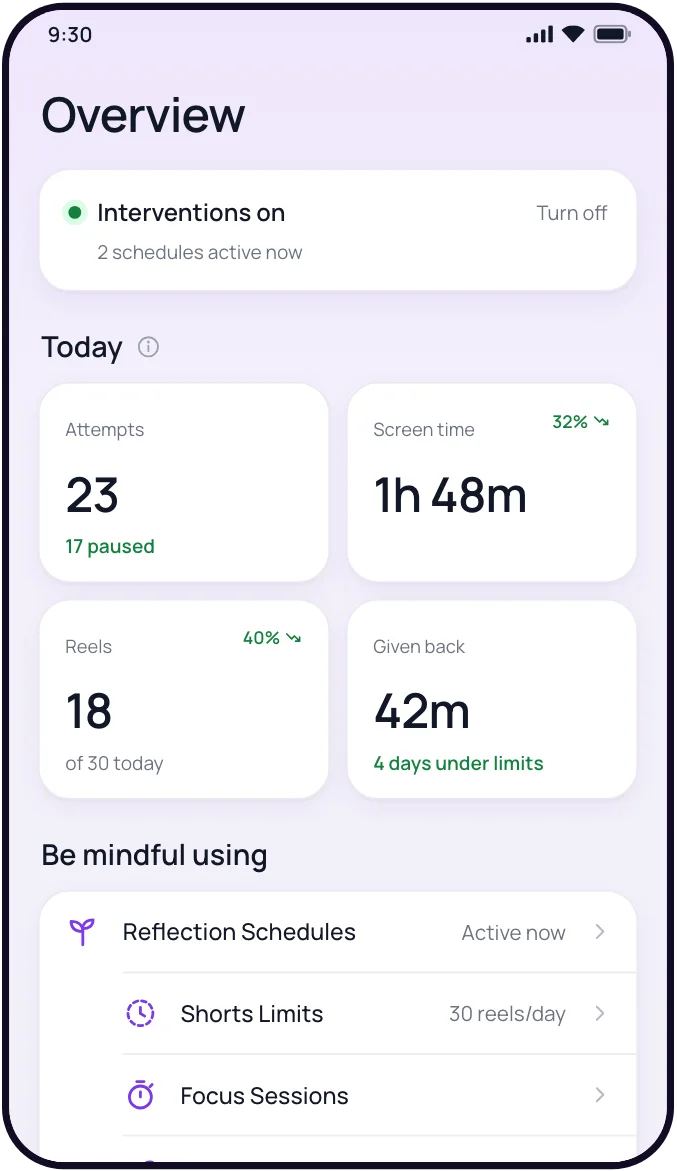
Overview compares today with yesterday: attempts, reels and screen time, plus the minutes you chose not to spend. Every Monday there’s a short recap of last week.
Built-in tools that help
Android’s App timers cap an app’s minutes per day, Bedtime mode turns the screen grey at night, and on Pixel phones Focus mode pauses chosen apps on a schedule. All three are in Digital Wellbeing & parental controls.
MindfulAccess is free on Android. No ads, no account.

More guides
- How to limit app usage on Android
- How to stop watching reels
- Block Instagram Reels, keep your messages
- Block YouTube Shorts on Android
- Block Facebook Reels on Android
- How to stop doomscrolling at night
- Block apps at certain times
- How to stop doomscrolling
- Block apps without parental controls
- Limit how many times you open an app