 MindfulAccess
Block Instagram Reels and keep your messages
Android can put a timer on all of Instagram, but that locks your messages too. MindfulAccess stops just Reels and Explore, so chats, Stories and your feed keep working.
Block Reels in four steps
- Install MindfulAccess and turn on Accessibility when it asks. That’s how the app sees what’s on screen.
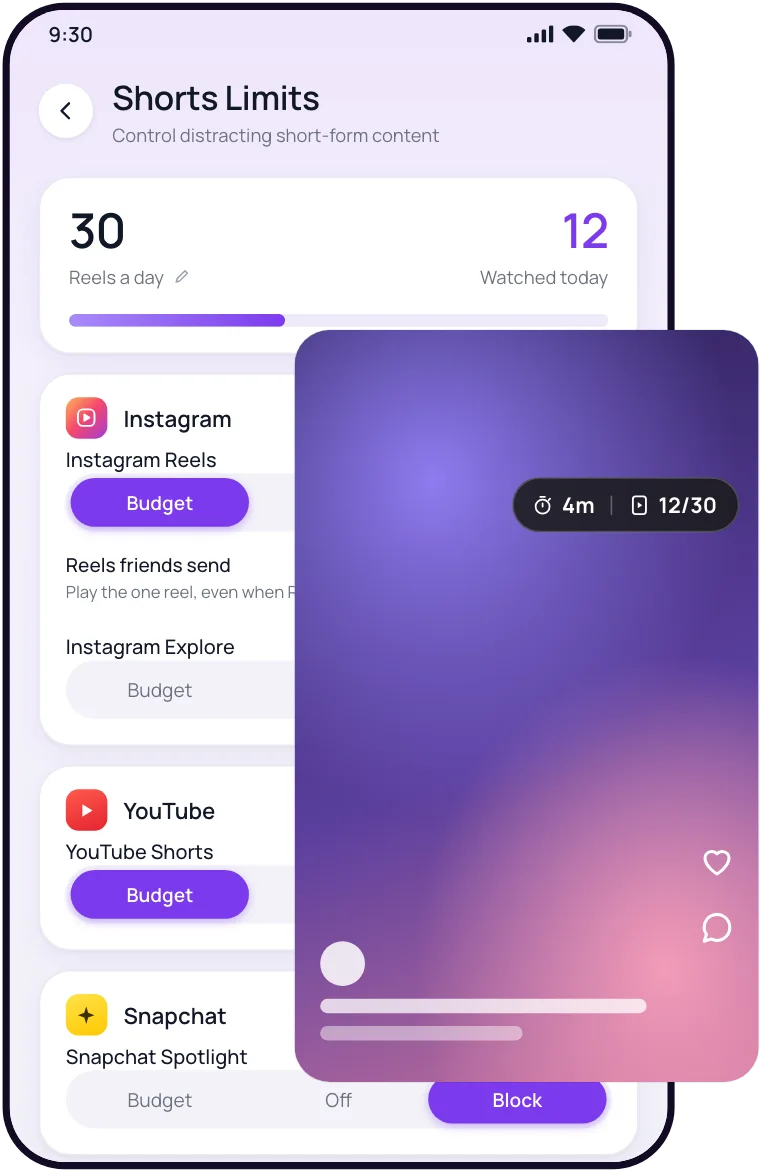
- On Overview, tap Shorts Limits.
- Under Instagram, set Instagram Reels to Block. Do the same for Instagram Explore if that’s where you end up scrolling.
- That’s it. Open Reels and MindfulAccess takes you back out, with a short note saying why.
Rather keep a few?
Choose Budget instead of Block, then set a daily limit at the top of Shorts Limits, in reels or in minutes. A small counter shows how many you’ve watched while you scroll. When the budget is used up, Reels closes until midnight.
What still works
Messages, Stories, your feed and profiles. Want reels your friends send to still play? Turn on Reels friends send, which appears under Instagram Reels once it’s on Budget or Block. A reel opened from a chat then plays, and swiping on takes you back to the chat. Reels from the feed or a profile still follow your limit.
Make it stick
In Settings, turn on Lock Shorts limits. You can still lower your limit any time, but raising it waits for a daily 30-minute window you choose, so a weak moment at midnight can’t undo it.
The built-in option
In Android Settings, Digital Wellbeing can set an app timer for Instagram. It limits the whole app, messages included. That’s useful if you want less Instagram overall, not just fewer Reels.
MindfulAccess is free on Android. No ads, no account.

More guides
- How to limit app usage on Android
- How to stop watching reels
- Block YouTube Shorts on Android
- Block Facebook Reels on Android
- How to stop doomscrolling at night
- Block apps at certain times
- How to reduce screen time on Android
- How to stop doomscrolling
- Block apps without parental controls
- Limit how many times you open an app