 MindfulAccess
Block apps at certain times on Android
Blocking an app all day rarely lasts. Blocking it at the times it hurts most, like work hours or late at night, usually does. Here’s how, without parental controls.
Set up a schedule
- Install MindfulAccess and turn on Accessibility when it asks. That’s how the app sees what’s on screen.
- On Overview, tap Reflection Schedules and create a schedule.
- Choose the apps. To block a website too, tap Add a website. Then tap Continue.
- Pick Blocking to keep them closed, or Pausing for a calm pause instead.
- Tap Work Hours (9 am to 5 pm), Bedtime (10 pm to 7 am) or All Day, or choose your own hours. Tap Save.
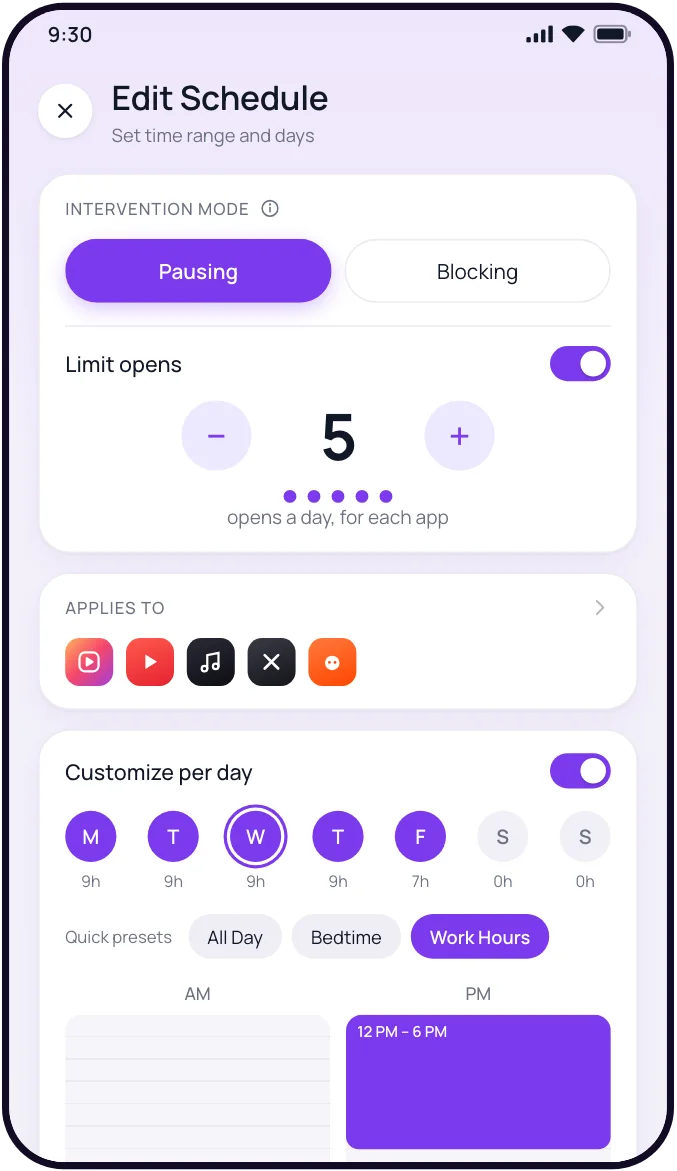
Different hours for each day
Turn on Customize per day and set each day on its own, for example work hours on weekdays and nothing on the weekend.
Make it stick
In Settings, turn on Lock schedules. You can make a schedule stricter any time, but loosening or deleting it waits for a daily 30-minute window you choose.
The built-in option
On Pixel phones, Focus mode in Digital Wellbeing & parental controls can pause chosen apps on a schedule. It’s quick to turn off when you’re tempted, which is where a locked schedule helps.
MindfulAccess is free on Android. No ads, no account.

More guides
- How to limit app usage on Android
- How to stop watching reels
- Block Instagram Reels, keep your messages
- Block YouTube Shorts on Android
- Block Facebook Reels on Android
- How to stop doomscrolling at night
- How to reduce screen time on Android
- How to stop doomscrolling
- Block apps without parental controls
- Limit how many times you open an app