 MindfulAccess
Block apps on Android without parental controls
Parental controls like Family Link are built for parents supervising a child’s phone. To block apps on your own phone you need something you control, that’s still hard to switch off in a weak moment.
Block an app
- Install MindfulAccess and turn on Accessibility when it asks. That’s how the app sees what’s on screen.
- On Overview, tap Reflection Schedules and create a schedule.
- Choose the apps. To block a website too, tap Add a website. Then tap Continue.
- Pick Blocking, choose the hours (All Day, Work Hours, Bedtime or your own), and tap Save.
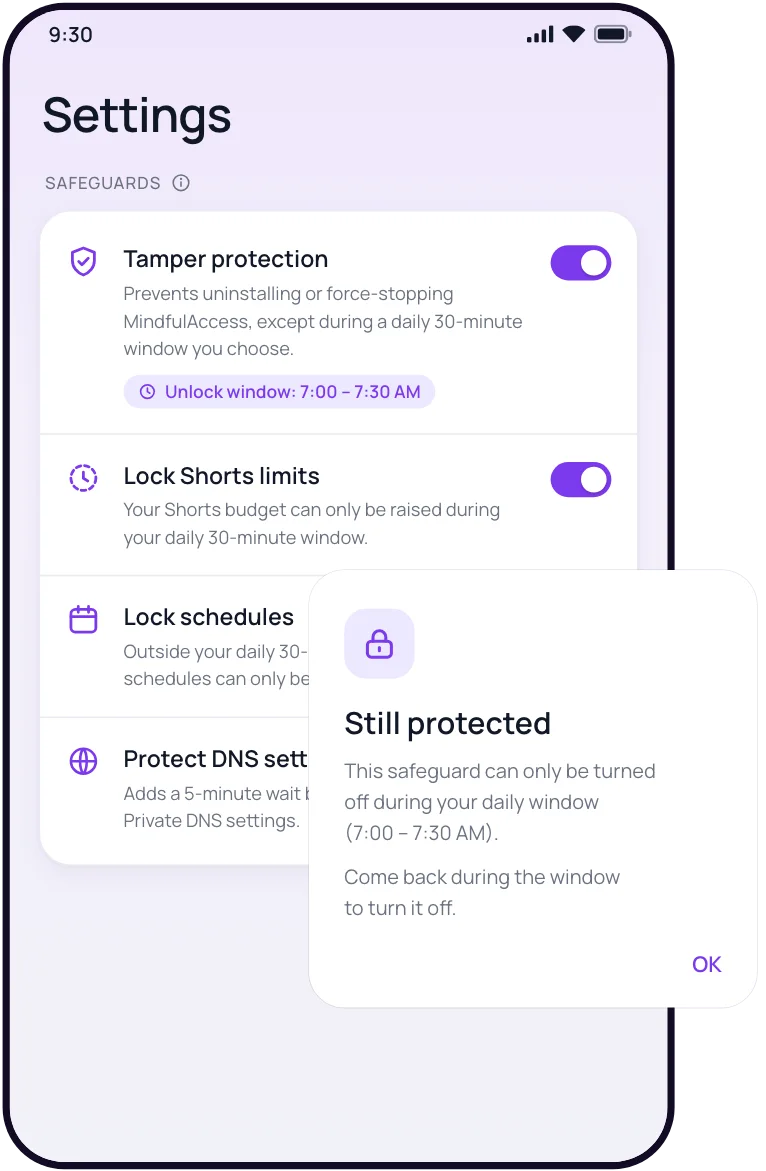
Make it hard to undo
In Settings, turn on Lock schedules and pick a daily 30-minute window, ideally a time you’re usually calm. Outside that window you can make schedules stricter, but not loosen or delete them. Tamper protection stops MindfulAccess being uninstalled or force-stopped outside the window, and changing the phone’s clock doesn’t open it early.
Prefer something softer?
Pick Pausing instead of Blocking for a calm pause before the app, or turn on Limit opens to allow a few opens a day.
Why not Family Link?
Family Link is built for a parent supervising a child’s Google account, so it doesn’t fit a phone you use for yourself. Android’s own Digital Wellbeing timers work, but they’re a tap away from being switched off.
MindfulAccess is free on Android. No ads, no account.

More guides
- How to limit app usage on Android
- How to stop watching reels
- Block Instagram Reels, keep your messages
- Block YouTube Shorts on Android
- Block Facebook Reels on Android
- How to stop doomscrolling at night
- Block apps at certain times
- How to reduce screen time on Android
- How to stop doomscrolling
- Limit how many times you open an app